Managing Testimonials
The Testimonials section lists everything customers have sent for the selected project. You decide what goes on your wall: new submissions wait for review, and only approved testimonials are shown to visitors.
Statuses#
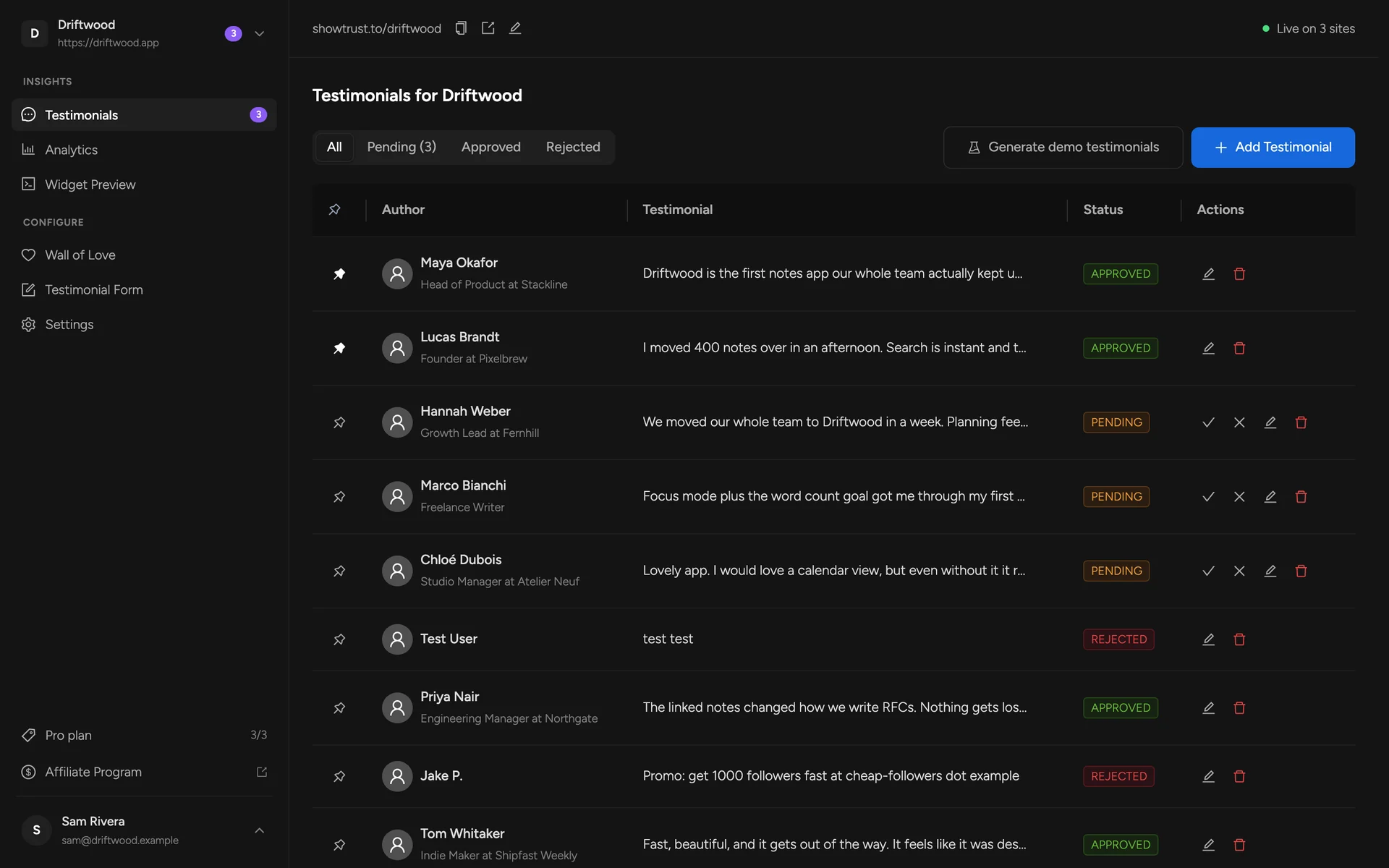
- Pending — new submissions from your testimonial page. Not shown on your wall. The sidebar shows how many are waiting.
- Approved — shown on your wall of love.
- Rejected — hidden from your wall and kept out of your way (spam, tests, anything you don't want to publish).
- Demo — sample testimonials, shown on the wall so it isn't empty while you collect real ones. See Demo testimonials.
Approve or reject#
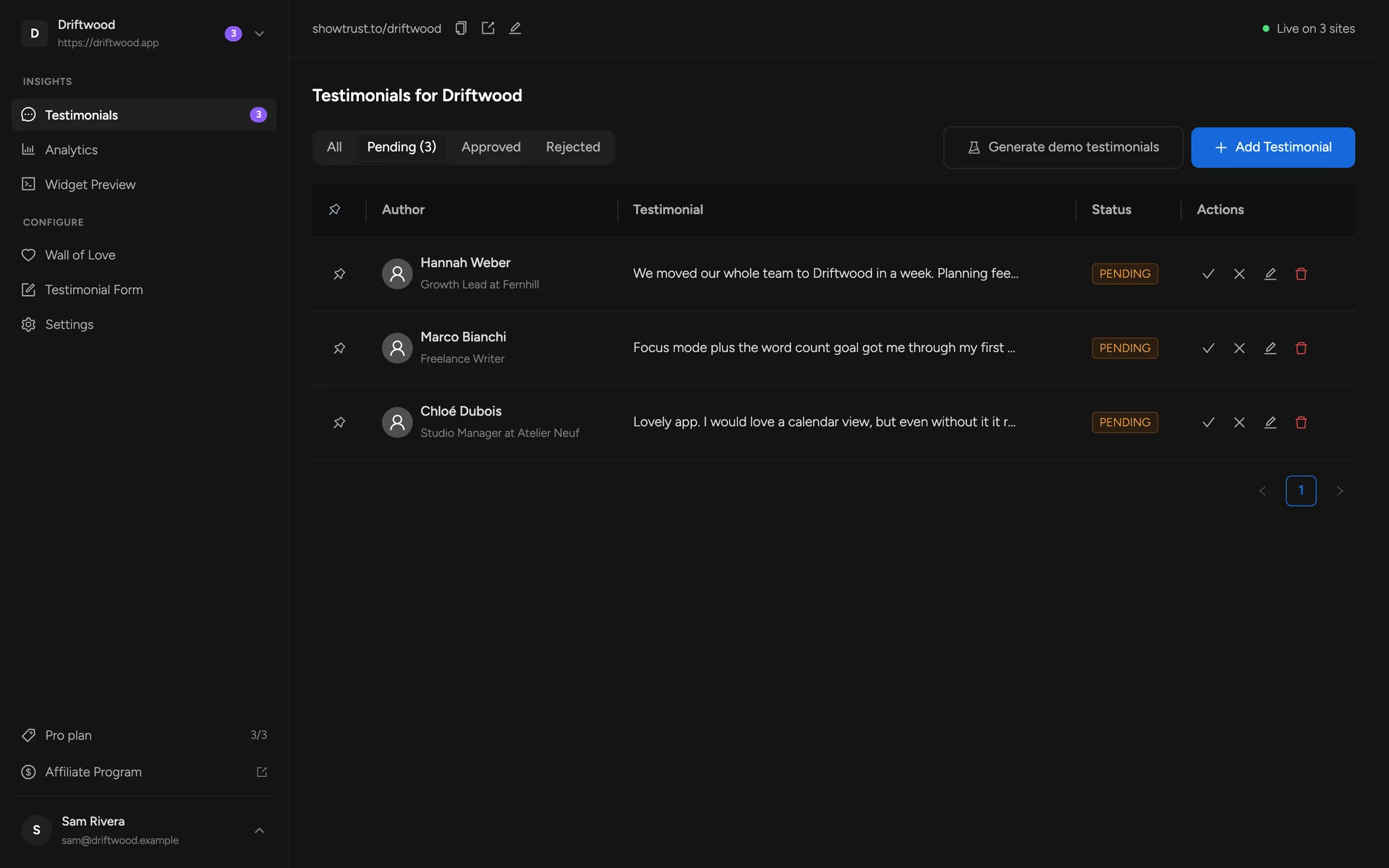
Open the Pending tab. Each testimonial has four actions: approve, reject, edit and delete. Approving publishes it to your wall straight away (a visitor may see the previous version for up to five minutes while the widget cache refreshes).
Pin favorites#
Click the pin next to any testimonial to move it to the top of your wall. Pin the ones that answer your buyers' biggest objections, or that come from recognisable customers. Click again to unpin.
Add one yourself#
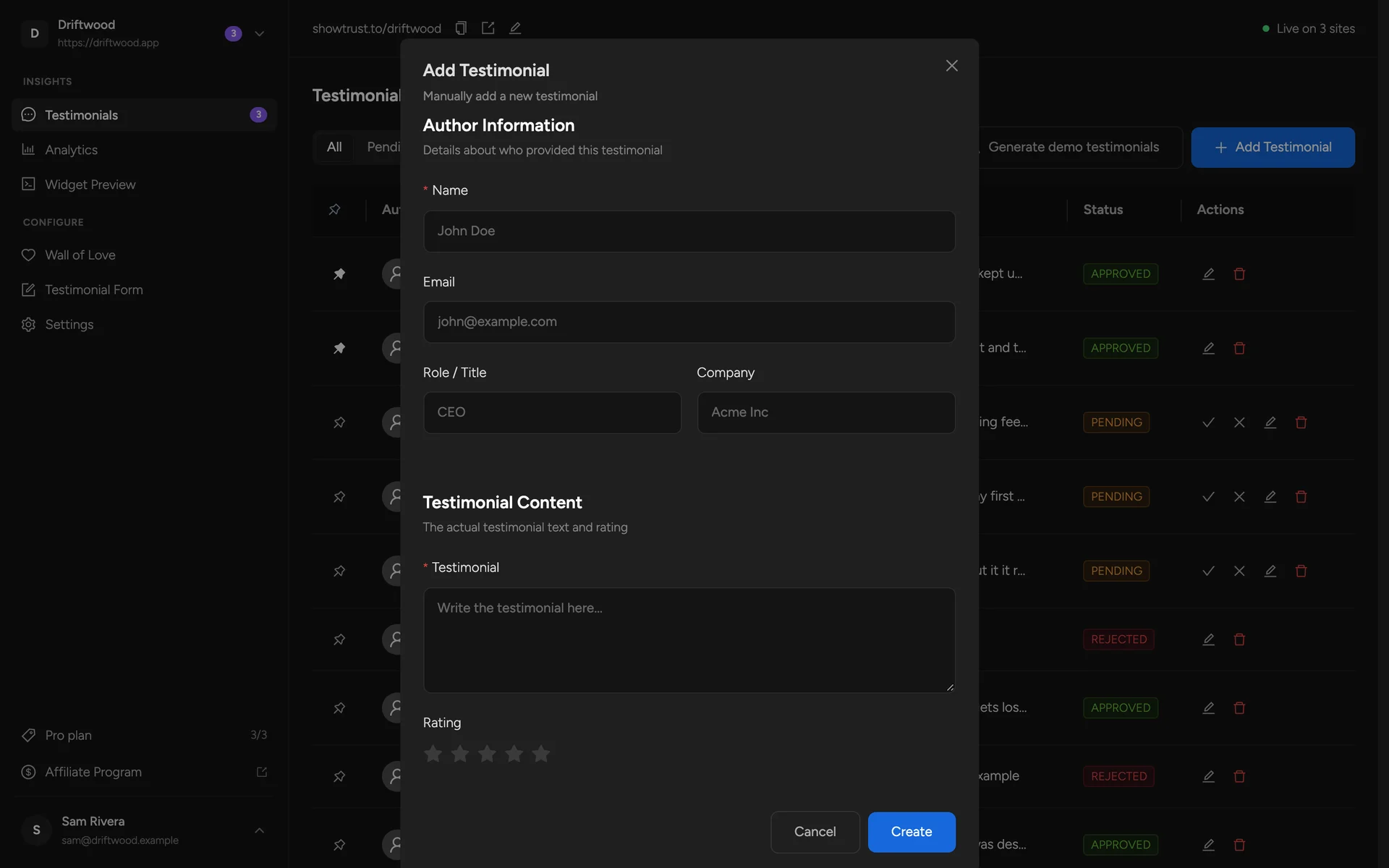
Got praise by email, on a call or in a support chat? Click Add Testimonial and paste it in — with the customer's permission. You can set the name, email, role, company, the testimonial text, a rating and its status.
Demo testimonials#
Your first project starts with six demo testimonials so your wall renders something on day one. They're marked Demo in the list. Use Generate demo testimonials to add more, and Clear demo data to remove them all once real ones arrive. Next: shape how they look on your site in Wall of Love Settings.