Testimonial Page
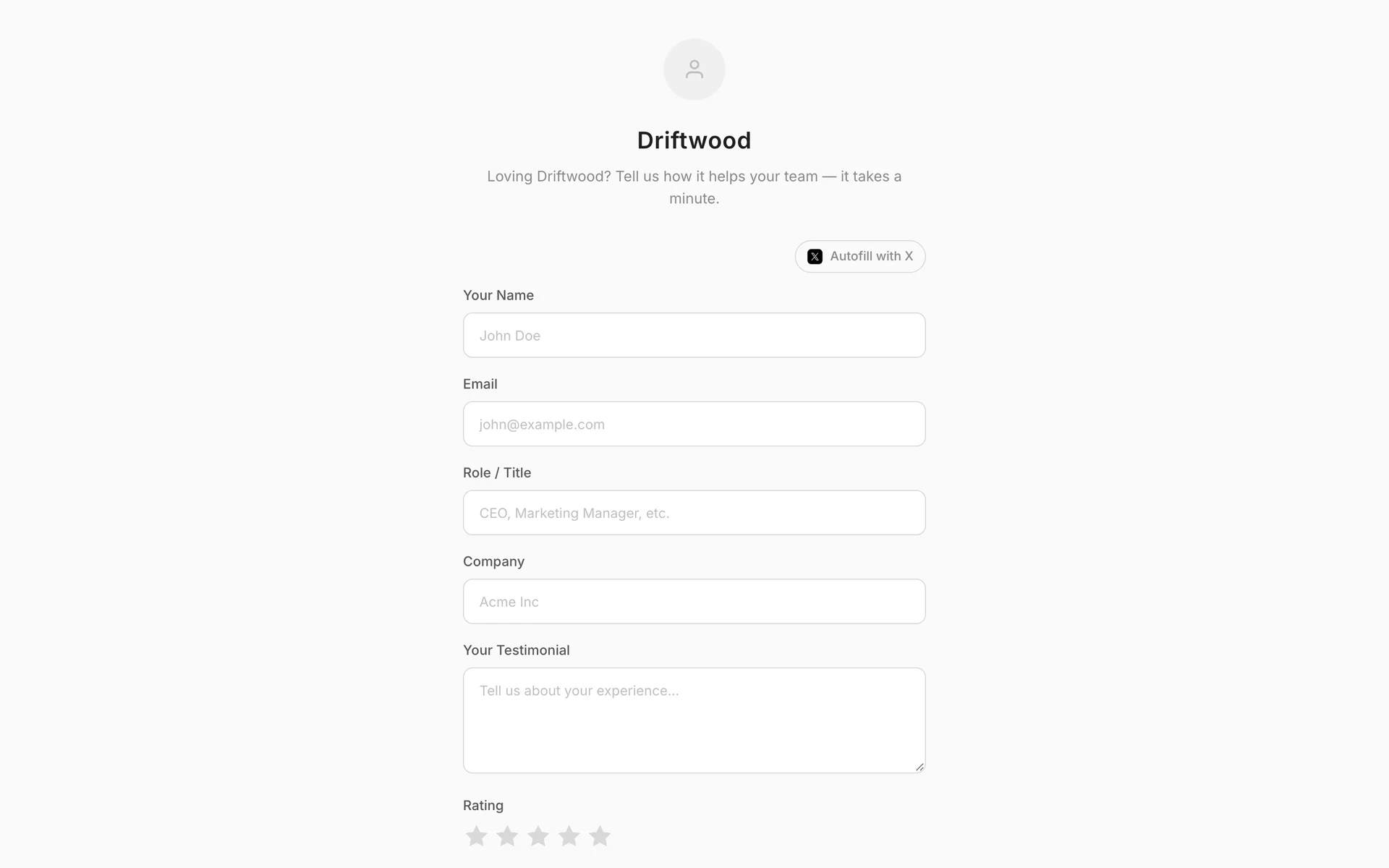
Every project comes with a hosted page where customers write a testimonial — no code, no embed, just a link you share: showtrust.to/<your-slug>. New submissions arrive in your dashboard as Pending, so nothing appears on your wall until you approve it.
What customers see#
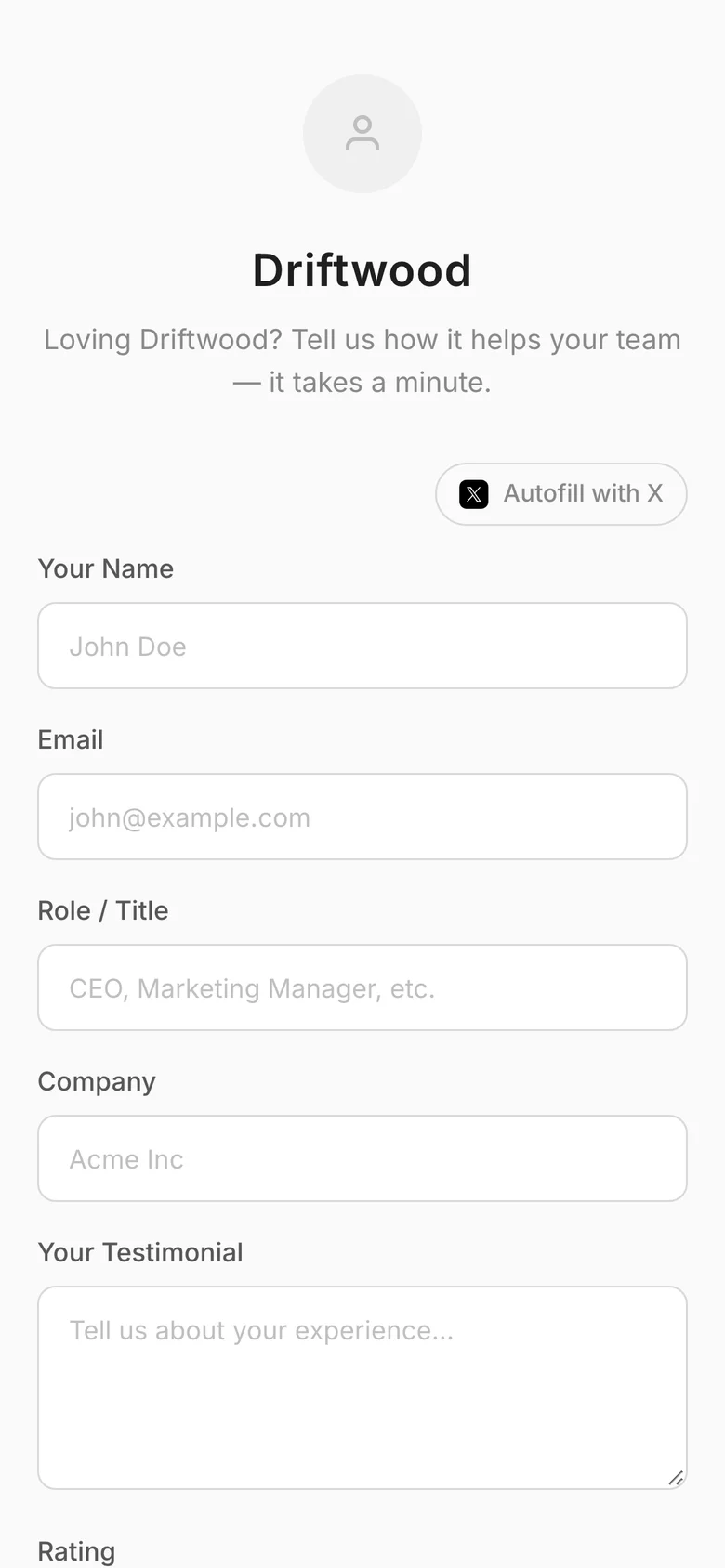
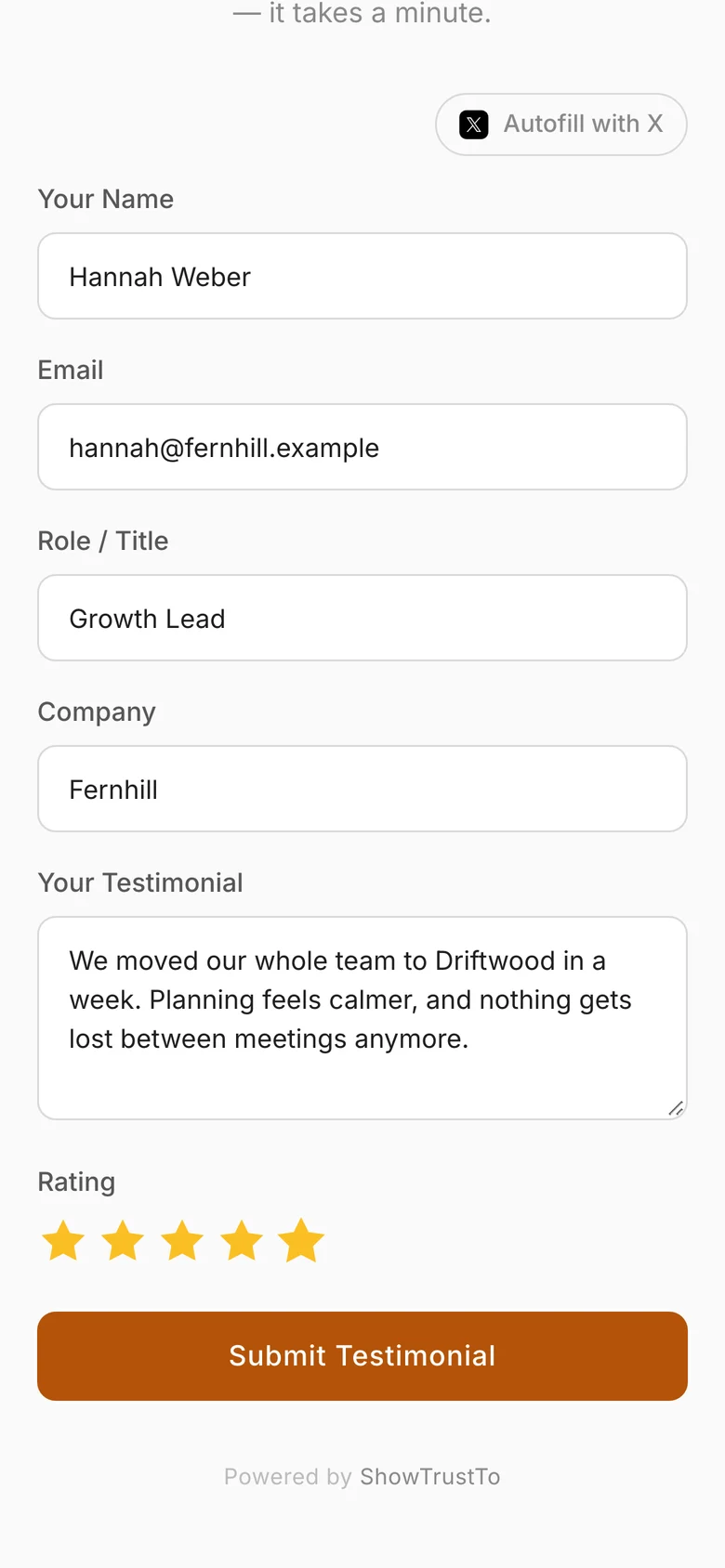
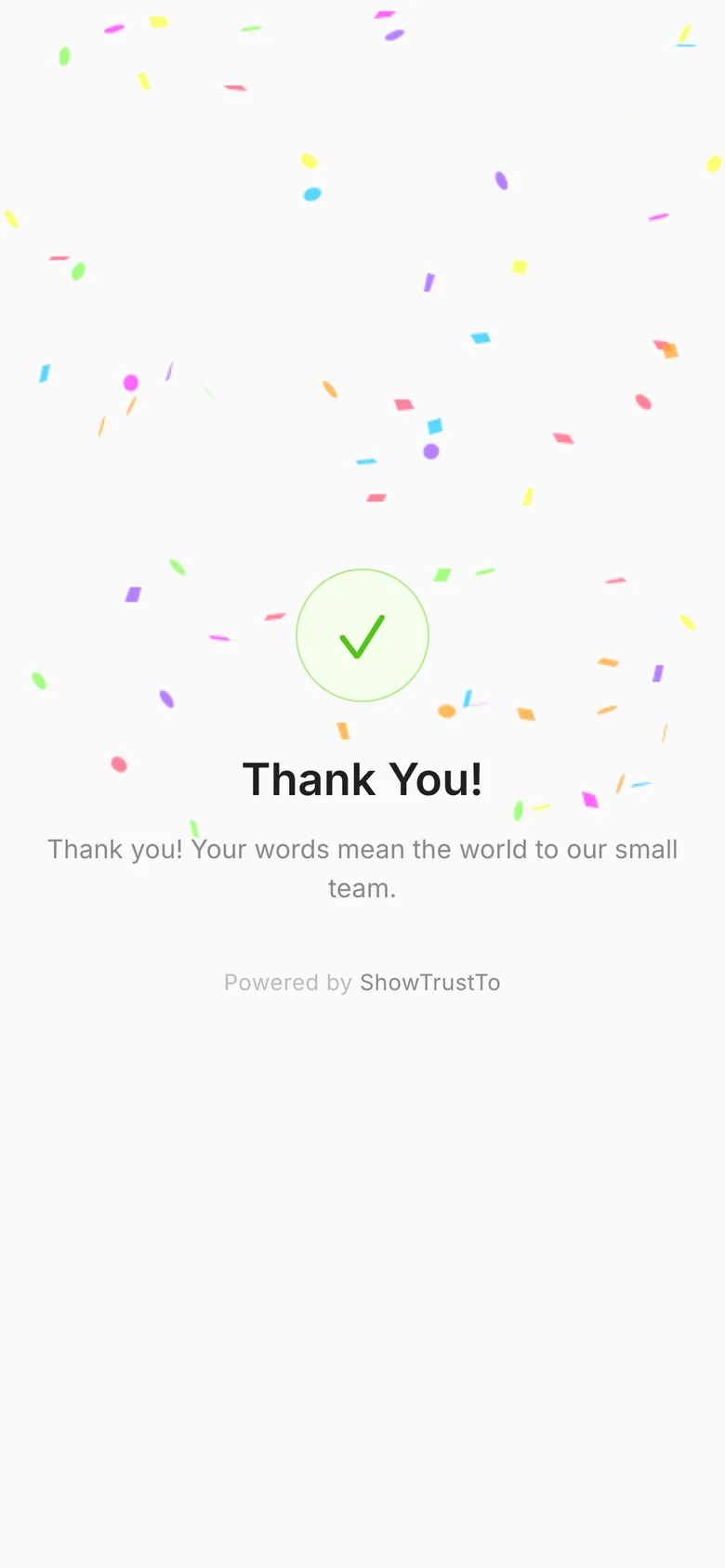
A clean, mobile-first form with your name and message at the top. Customers can fill it in by hand or tap Autofill with X to bring in their name, handle and profile photo from X. They add a star rating, submit, and get a thank-you screen.
Page content#
Open Testimonial Form in the sidebar. The settings are on the left and a live preview of the page is on the right; changes apply when you click Save changes.
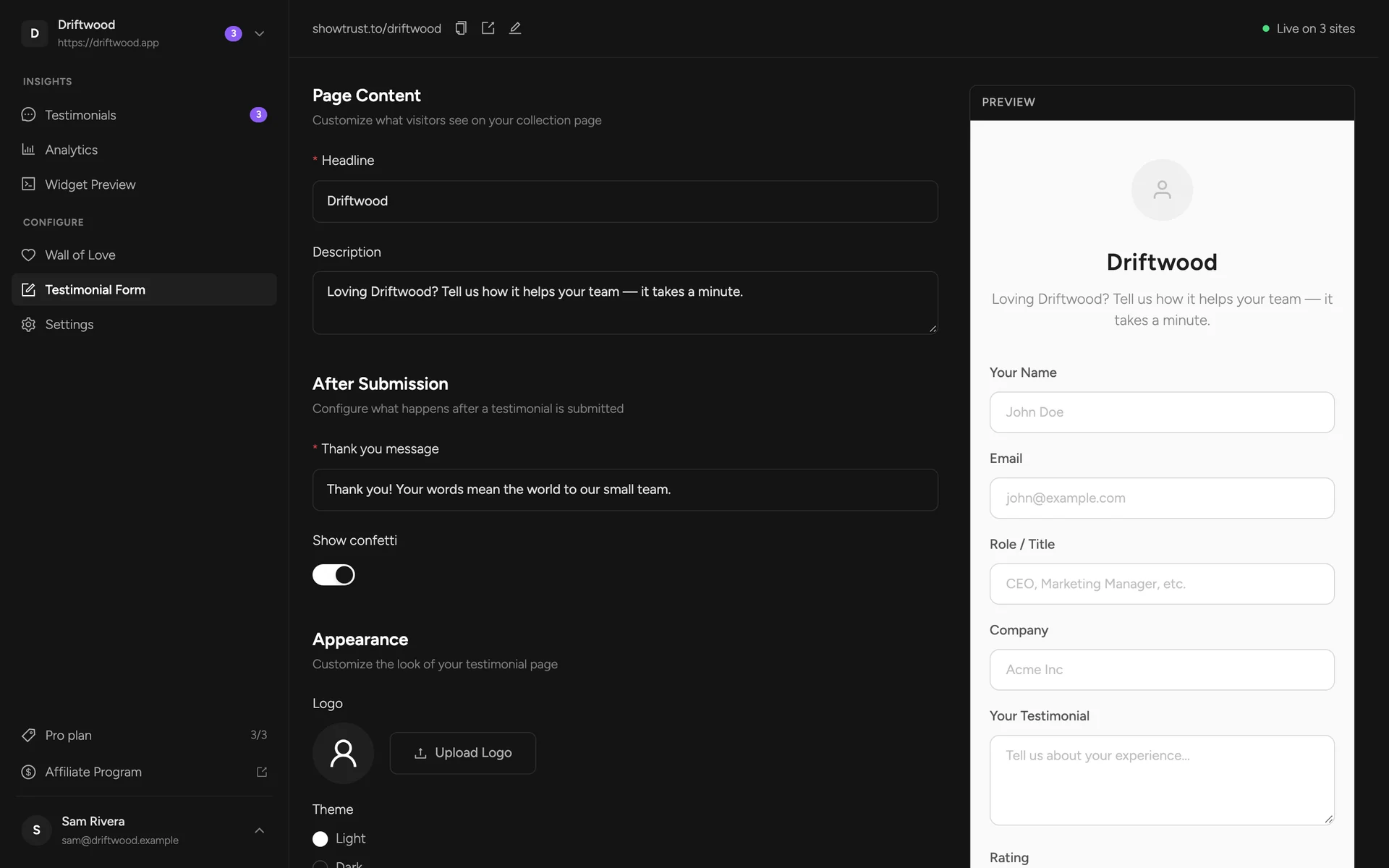
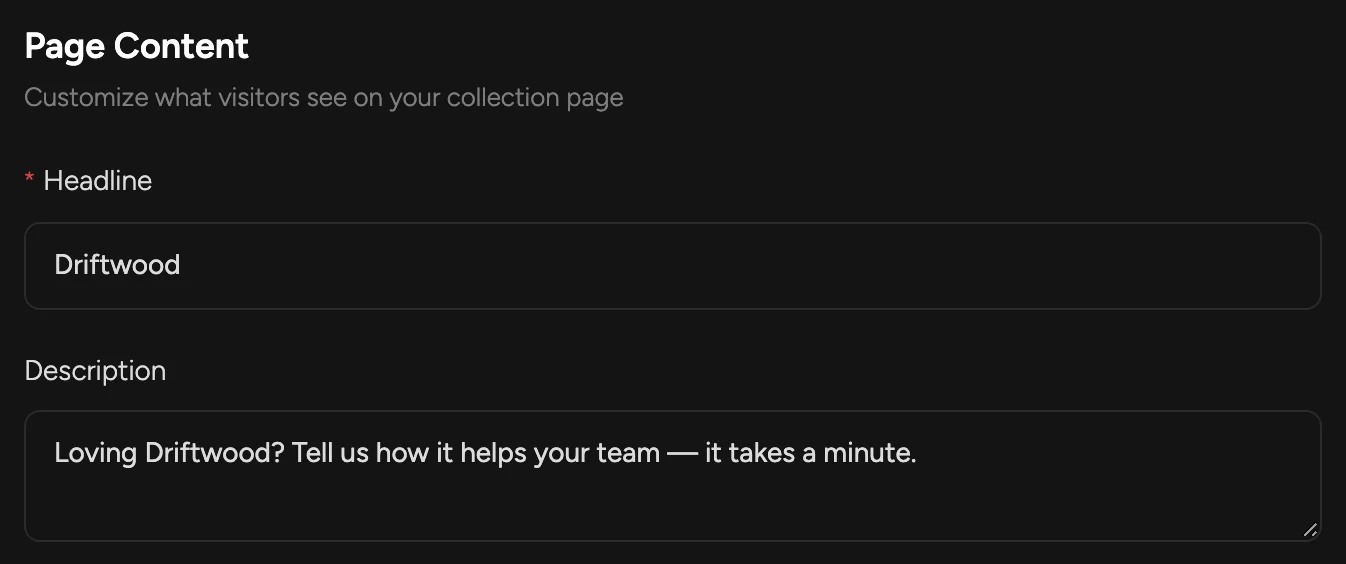
Headline — the title at the top of the page (usually your product's name)Description — a line inviting customers to share their experienceAfter submission#
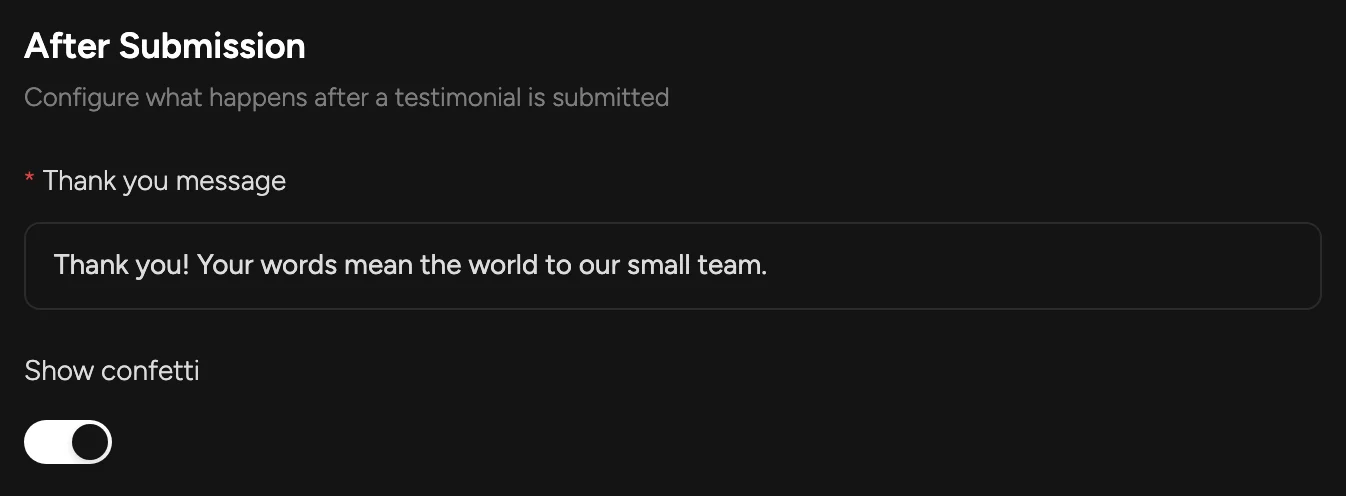
Thank you message — shown after a customer submitsShow confetti — a short celebration on the thank-you screenAppearance#
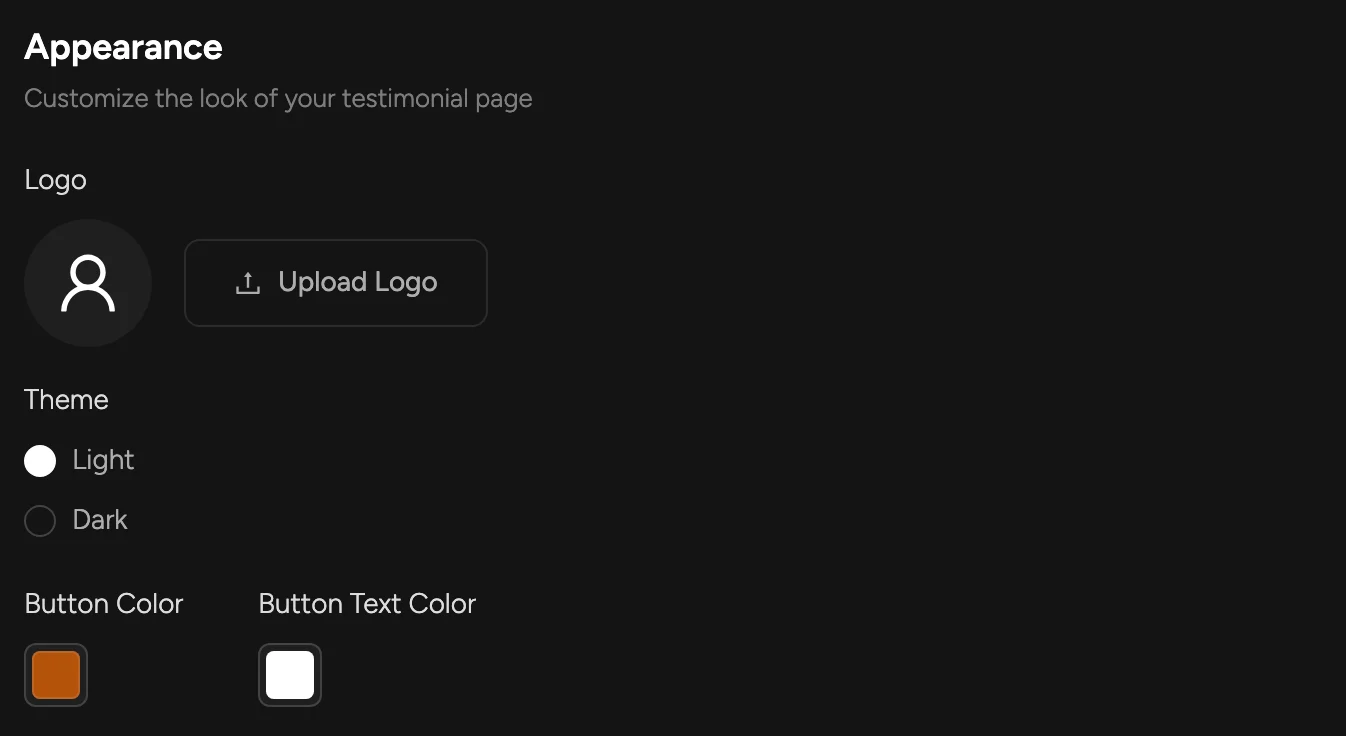
Logo — upload your logo; it replaces the placeholder at the topTheme — a light or dark pageButton Color and Button Text Color — match the submit button to your brandForm fields#
Choose which fields the form asks for. Fewer fields means more submissions; more fields make each testimonial more credible on your wall.
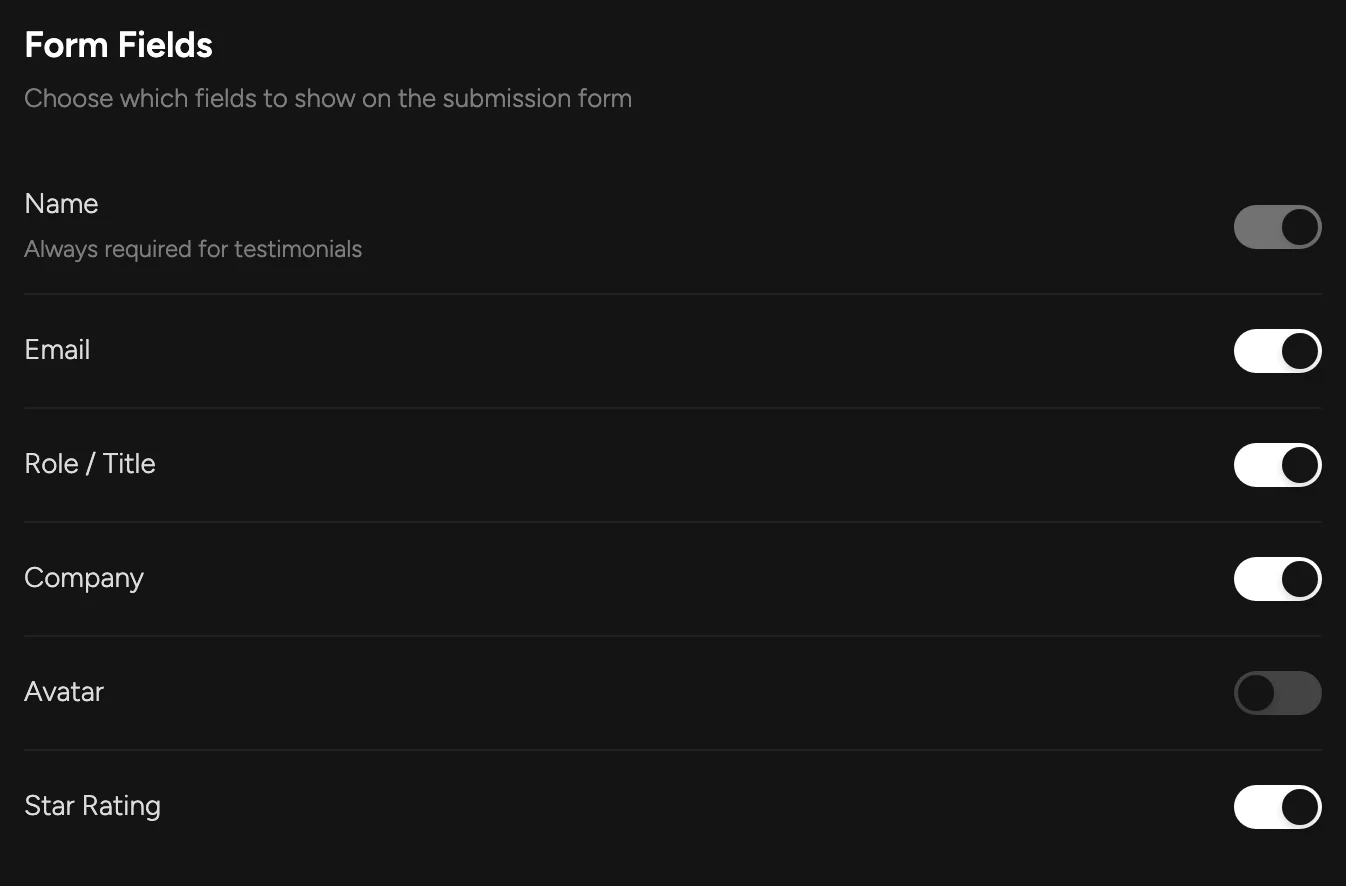
Name — always requiredEmail — never shown publicly; lets you follow upRole / Title — shown under the name on your wallCompany — shown with the roleAvatar — use the customer's X profile photo when they autofill with XStar Rating — a 1–5 star ratingShare the link#
Copy the link from the dashboard header and send it wherever happy customers are: a post-purchase email, your onboarding sequence, a support reply, or an in-app prompt. You can also turn on the wall's Show CTA button so visitors can reach the page straight from your site — see Display options. Submissions then wait for you in Testimonials.