Dashboard Tour
Everything in ShowTrust happens in one dashboard at app.showtrust.to. It is organised around projects — one per website or product — and each project has its own testimonials, testimonial page, wall of love and analytics.
Layout#
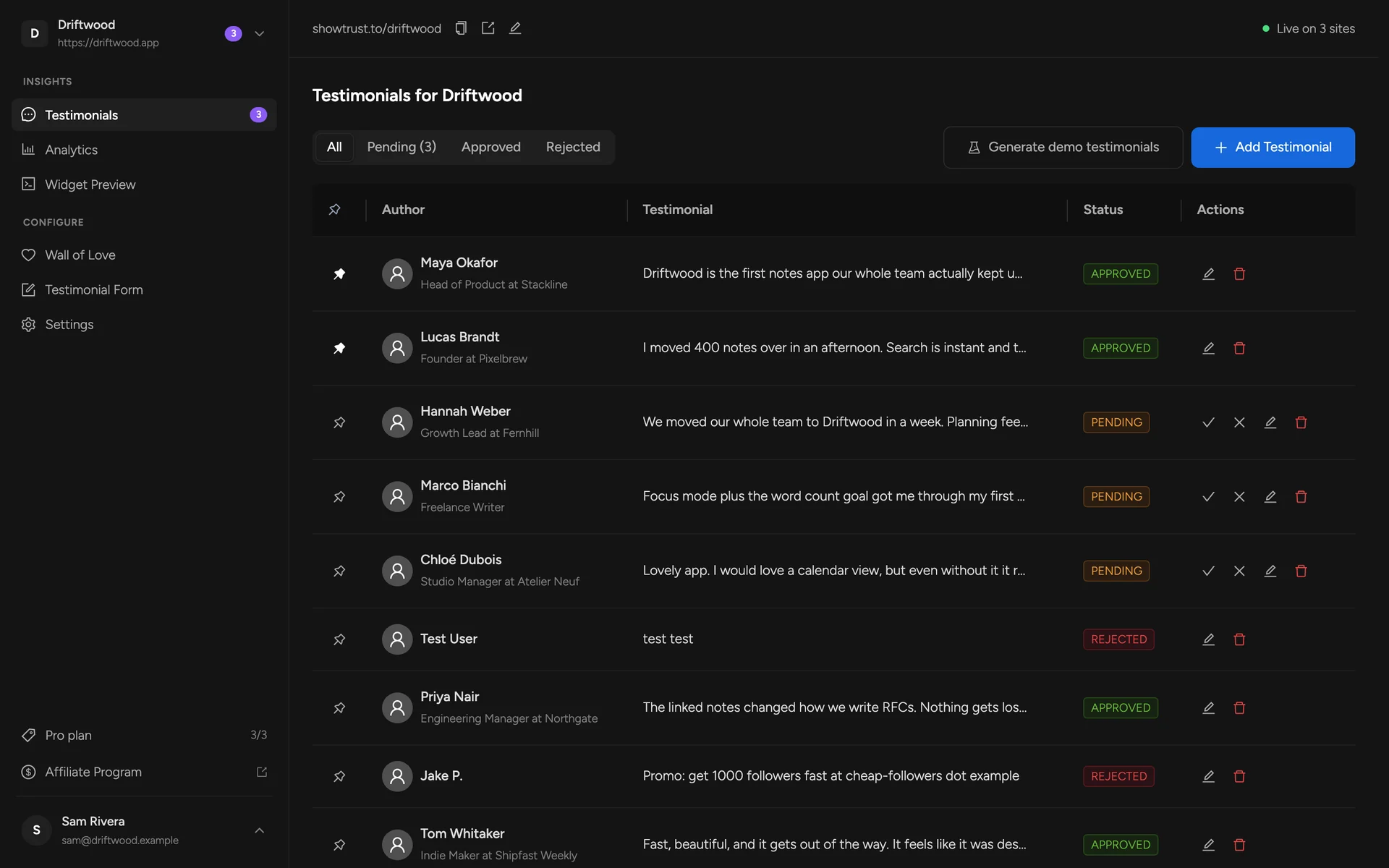
The sidebar on the left switches between sections and projects. The header above the content shows your public testimonial link and whether your wall is live.
Your public link#
Every project gets a hosted testimonial page at showtrust.to/<your-slug>. The header shows it with three actions: Copy URL, Open in new tab, and Edit URL to change the slug. Send this link to customers — see Testimonial Page.
Install status#
The badge on the right of the header tells you whether the widget has been seen on a website yet. Before the first load it reads Waiting for first install; once a page with your embed code is visited it switches to Live on N sites, counting the distinct domains your wall is embedded on.
Sections#
- Testimonials — review, approve, pin, edit and add testimonials. Managing Testimonials →
- Analytics — impressions, CTA clicks and where your wall is embedded. Analytics →
- Widget Preview — your wall exactly as visitors see it, with your real testimonials. Widget preview →
- Wall of Love — layout, card style, colours, size and the embed code. Wall of Love Settings →
- Testimonial Form — the page customers use to write a testimonial. Testimonial Page →
- Settings — delete the project. Projects →
Your account (profile, plan and billing, API keys) lives under your name at the bottom of the sidebar — see Account, Billing & API.