October 8, 2026
·
9 min read
Testimonial Widget for Shopify: Fix Breaks, Missing Blocks & Errors
Triage a testimonial widget for Shopify: find the install layer (app embed/block, Custom Liquid, theme.liquid) and fix breaks or duplicates.

You added a few customer quotes to your storefront, and suddenly the layout shifts, the widget vanishes, or the theme editor starts throwing errors. When this goes wrong, it’s not just annoying—it can block a launch, undermine trust, and tempt you into risky “just edit the theme files” guesses.
This checklist gives you a fast triage to sort the symptom, a way to identify where the install actually lives (app embed, app block, Custom Liquid, or theme.liquid), and targeted fixes for placement failures, theme-breaking errors, and a safe cleanup/reinstall path.
Two-minute triage
Before you change anything, lock down one repeatable test: the exact URL where the testimonial widget for Shopify should appear, and the page template it uses (home, product, page).
Sort by symptom
- Widget missing (no space where it should be): Check you’re looking at the published theme (not just a preview). If the store recently switched themes, Shopify says apps often need to be re-activated in the new published theme, and app embeds start off disabled until you turn them on in Theme Settings → App embeds (an app embed is an app-provided integration you toggle on/off there — see Shopify’s guide to app blocks and app embeds).
- Theme Editor placement error: If you can’t add the widget where you expect, your theme section may not support app blocks (Shopify recommends checking theme documentation or asking the theme developer).
- Layout/CSS break (page “looks wrong”): Note exactly what shifted (header, spacing, fonts) and on which template only.
- Console JavaScript error: Treat red errors as the primary symptom. Record the first error line and filename.
- “Add block” is grayed out: Shopify templates have hard limits—25 sections per template and 1250 blocks total—so you may be hitting a ceiling rather than a widget bug.
Capture proof quickly
- In Online Store → Themes, write down which theme is Published.
- Reproduce the issue in both Published and Preview for that same theme.
- Record the affected template (home/product/page) and the exact click path to trigger it.
- Open your browser devtools Console, screenshot the first red error, and keep that screenshot with the test URL.
With one saved URL, one template, and the published theme nailed down, you can identify the single Shopify integration layer involved (app embed, app block, Custom Liquid, or a theme.liquid paste) instead of changing multiple things at once.
Inventory install layer
Stop trying random fixes until you know how your testimonial widget for Shopify is being injected. You’re looking for one of four install layers.
Steps (pick the first “yes” you hit)
-
Check App embeds first. In the theme editor, open Theme settings → App embeds and look for the widget’s embed toggle. An app embed is an app-provided integration that injects code globally (or by template rules) and is turned on/off here (per Shopify’s theme app extensions configuration).
-
Check the page’s sections for an App block. Open the template where the widget should appear, then inspect the section’s block list. An app block is an app-provided block you can place inside a theme section via the editor (it shows up as a block option).
-
Look for Custom Liquid placement. Still in the editor, scan the template’s sections/blocks for Custom Liquid (or a custom “Testimonials” section) that contains a pasted script + container.
-
Audit theme code for manual edits in theme.liquid. theme.liquid is the main layout file that wraps storefront pages; pasting third‑party scripts here loads them site-wide. If you see widget scripts here and you also enabled an embed/block, you’ve found a duplicate path.
-
Assume leftovers until proven otherwise. Uninstalling an app doesn’t remove code it wrote into your theme (scripts, snippets, CSS), so inventory what’s still loading before you “reinstall.”
Once you’ve identified the active layer, only apply fixes for that layer—mixing embed toggles with theme.liquid edits is how bugs survive.
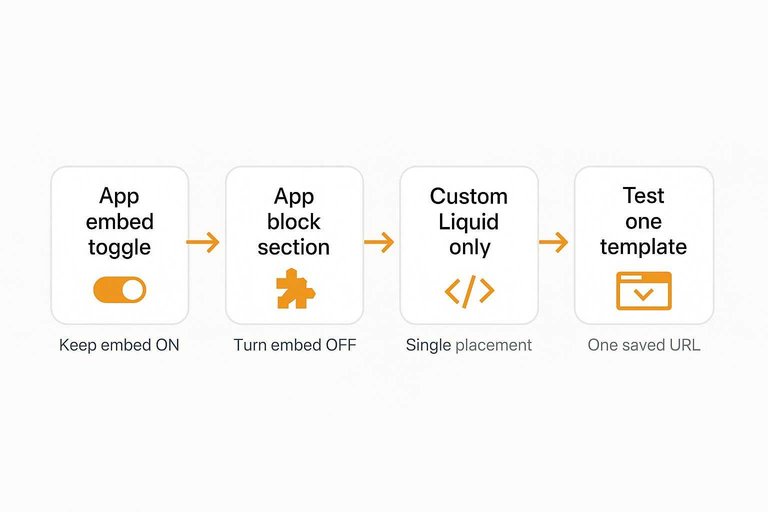
Choose one integration
If the widget is enabled as an app embed and also pasted into theme.liquid or Custom Liquid, you’re loading it twice—expect double scripts, double CSS, and “it works in preview but not live.”
- If you see an App embed toggle: Keep the embed ON, then remove any pasted widget snippet from theme.liquid and any Custom Liquid blocks. Shopify injects app embeds right before the closing and tags (as described in Shopify’s theme app extensions configuration), so a manual snippet is a second copy.
- If you placed an App block in a section: Keep the block, turn the embed OFF (if present), and delete any manual code paths.
- If it’s only Custom Liquid or theme.liquid: Keep that single placement, and turn OFF embeds / remove app blocks. If you’re intentionally installing it this way, follow the plain HTML integration steps.
- Assume leftovers: uninstalling an app doesn’t remove theme code it added.
Then test on one template (your one saved URL) before changing anything else.
Fix editor placement failures
If your testimonial widget for Shopify “vanished” or the editor won’t let you add it, treat it as a placement problem first: you’re either editing the wrong theme/template, the theme can’t host the block, or you’ve hit a Shopify limit.
| What you see in the editor | Most likely cause | Fix (minimum change) | Confirm it’s really fixed |
|---|---|---|---|
| Widget worked, then disappeared after a theme switch | App not active on new published theme | Re-activate the app on the published theme | Widget visible on the published theme preview |
| Widget visible in preview, missing on live store | You edited an unpublished theme | Switch to the published theme, re-add there | Live URL matches your test page |
| “Add block” exists, but your widget isn’t in the list | App doesn’t provide an app block | Use the app embed or manual placement | Widget appears without a block added |
| “Add block” button missing for that section | Section doesn’t accept blocks | Move widget into a block-friendly section | Block list appears for that section |
| “Add block” is disabled inside a nested layout | Max nesting depth reached | Reduce nesting; add widget higher up | Block can be added at parent level |
| Trying to place it on checkout pages | Checkout isn’t theme-editable like storefront | Place on cart/product/page template instead | Widget renders on a storefront template |
Shopify is explicit that when you change your published theme, apps aren’t active by default in the new theme—so you must re-activate them there (see Shopify Help Center on extending your theme with apps).
If you’re stuck on a heavily nested layout, Shopify also caps nested blocks at 8 levels; at that point, the “fix” is structural: place the widget in a higher-level section where Shopify will allow another block.
Fix theme-breaking errors
These are the failures that make a storefront throw Liquid/JS errors or make the Theme Editor itself stop loading.
A JSON template (for example templates/page.json) is a .json file in your theme’s /templates folder that only defines which sections appear on a page; HTML/Liquid belongs in those referenced section files, not inside the JSON (as Shopify notes in the page template documentation). Dawn is Shopify’s reference Online Store 2.0 theme, and (per a Shopify Community thread) it doesn’t rely on jQuery by default.
| Theme-breaking error | How to spot it fast | Fix (minimum change) | Confirm it’s fixed |
|---|---|---|---|
| Invalid JSON template edit | Theme Editor won’t open; “invalid JSON”; “unexpected token” | Revert templates/*.json; move code into /sections/*.liquid |
Editor loads; page renders |
| Duplicate script load / double-init | Widget renders twice; repeated console errors; script requested twice | Keep one install path; remove theme.liquid paste or disable embed/block |
Single request; single widget |
| jQuery-dependent snippet on Dawn | Console: “jQuery is not defined” / “$ is not defined” | Replace with vanilla JS or non-jQuery widget; don’t add jQuery just to satisfy it | No jQuery error; UI works |
| Leftover theme code after uninstall | Liquid error for missing snippet/asset; 404 for app JS/CSS | Remove stale {% render %} / {% include %} and script/link refs still in theme files |
No Liquid errors; no 404s |
Two things make these recur: (1) pasting markup into a JSON template because it “looks like a template,” and (2) leaving multiple integration paths live. Fix the structure, then re-test on your single saved URL until the console is clean and the layout stops shifting.

Cleanup and safe reinstall
Remove leftover code
Uninstall/reinstall loops usually fail because the old integration never fully left, so you end up with two code paths fighting each other.
- Turn OFF every app embed related to the widget. Do it in the published theme, then save.
- Confirm the toggle actually stayed off. If it flips back or behaves inconsistently, search your theme’s
config/settings_data.jsonfor the app’s settings and remove the stale enablement before you keep debugging. - Search the theme for manual leftovers. Use code search for the app name, the word “testimonial”, and common patterns like
<script,window.config objects,{% render %}, and{% include %}. - Delete orphan assets and references. Remove leftover
<script>/<link>tags and any unused CSS you previously pasted for the widget. - Re-test in theme preview before publishing. Your goal is boring: one integration path, one render, no new console errors.
If you can’t explain “where the widget comes from” in one sentence, you haven’t cleaned it up yet.
Clean reinstall: ShowTrust
If the fastest recovery is “one clean script + one container,” reinstalling ShowTrust’s wall-of-love widget is exactly that kind of reset—start from a clean embed code snippet and build back up.
- Pick one placement method and commit to it. Use the manual embed (script + container) on the single template you’re fixing first.
- Add the script once. Load
https://app.showtrust.to/showtrustto-widget.jsa single time and keep only one config block:window.SHOWTRUSTTO_WIDGET_CONFIG = { projectId: '…' }. - Add one container where the widget should appear. Don’t paste a second container into another section “just to test.”
- Verify moderation behavior. Confirm approved testimonials render, and items still in Pending do not.
- Publish, then re-run a minimal live checklist. Same URL, same template: widget present, no duplicate loads, layout unchanged.
If you later switch to an app-embed/app-block install, remove the manual snippet first—theme app extensions and pasted code should never both be active.
Restore fast by choosing one path
When a testimonial widget breaks a Shopify theme, the fix isn’t “tweak more theme files”—it’s finding the one place Shopify is injecting it (app embed, app block, Custom Liquid, or theme.liquid) and removing every competing path. Pick your single saved test URL/template, commit to one integration method, and don’t touch anything else until that page renders once, with a clean console and no layout shift. If you need the quickest reset, a single script + a single container gets you back to “one load, one render” without guessing; if your theme supports app blocks and you want editor-native placement, keep the block and disable the global embed/manual paste instead. Once you can explain “where the widget comes from” in one sentence, you’re back in control—and safe to publish.
Frequently Asked Questions
- Why is my testimonial widget for Shopify showing twice (or firing duplicate JavaScript events)?
- You have two active install paths at once (for example, an app embed plus a pasted snippet in theme.liquid or Custom Liquid). Shopify app embeds inject code near the closing and , so remove the manual snippet or disable the embed until only one path remains.
- Can I paste testimonial widget code into a Shopify JSON template like templates/page.json?
- No—JSON templates only declare which sections load on a page, so HTML/Liquid belongs in the referenced section files instead. Put the testimonial widget for Shopify into a section (or Custom Liquid block) and keep the JSON file valid.
- How do I fix “jQuery is not defined” when adding a testimonial widget for Shopify on the Dawn theme?
- Don’t add jQuery just to satisfy one widget—Dawn doesn’t ship with jQuery by default, so the durable fix is to use a widget/snippet that works with vanilla JavaScript. Replace the jQuery-dependent code with a non‑jQuery version instead of introducing a new global dependency.
- What should I do if my testimonial widget for Shopify works in theme preview but not on the live store?
- Open the exact live URL and confirm you edited the same theme that’s marked Published in Online Store → Themes. If you made changes in an unpublished theme, replicate the widget setup in the published theme and re-test that same live URL.
- Do I need a Shopify app block to add a testimonial widget for Shopify, or can I embed it manually?
- You can embed it manually if the app doesn’t provide an app block or your theme section can’t host blocks—use one script load and one container on the template you’re fixing. If you want a clean reset, ShowTrust supports a plain script + container embed that renders only testimonials you’ve approved.
Publish a Clean Wall of Love
Once your install path is clean, the next challenge is keeping testimonials flowing and the widget consistent across themes, templates, and updates without rework.
ShowTrust gives you a hosted collection page to gather testimonials, plus an embeddable Wall of Love widget that renders only approved entries—so you can ship social proof without theme fragility.
Written by
ShowTrust
Notes from the ShowTrust team on collecting testimonials and building authentic social proof.
Share: