July 8, 2026
·
Updated October 10, 2026
·
10 min read
Social Proof Widget Not Showing on SaaS Pages
A practical troubleshooter for when a social proof widget won’t appear on your SaaS pages—confirm the exact symptom, run quick triage checks, diagnose script loading and CSP issues, verify initialization/targeting in SPAs, and rule out CSS/layout and provider-side constraints.

Your social proof widget is “installed,” but the page is empty—no popups, no badges, nothing. Is the script failing to load, initializing on the wrong target, or simply rendering off-screen?
This troubleshooter helps you move from guesswork to a clear root cause. You’ll learn how to reproduce and define the failure, collect the right evidence, then work through fast checks for script delivery, CSP/ad blockers, SPA route changes, CSS visibility, and provider-side rules like domains, audiences, and quotas.
Confirm the Symptom
Before you change code, make the failure measurable. You’re trying to learn where it breaks, what users actually see, and what “working” looks like on the same page.
Reproduce the Issue
Reproduce it the same way a user hits the page.
- List the exact URLs where the widget should appear.
- Test at least two browsers with a clean profile.
- Check desktop and mobile, including responsive breakpoints.
- Compare logged out versus logged in states.
- Repeat with any known ad blockers enabled.
If it only fails in one path, you’re not debugging a widget. You’re debugging a condition.
Define “Not Showing”
“Not showing” can mean five different failures, and each points to a different fix. Name the exact symptom before you touch anything.
Imagine a page where the widget area is blank, but the DOM node exists. That’s a render or data problem, not routing.
If you can’t describe it in one sentence, you can’t reliably verify the fix.
Capture Evidence
Collect artifacts you can compare across environments.
- Console errors and warnings
- Failed network requests and statuses
- DOM screenshot at mount point
- Page HTML around container
- Timing trace for late render
Good evidence turns “works for me” into a diff you can act on.
Scope the Impact
You need the blast radius before you pick a hypothesis. A single page failure suggests markup or page-specific scripts, while template-wide points to shared assets.
Also check whether the issue lines up with a rollout, experiment, or feature flag. That’s often the invisible switch.
When scope changes, root causes change with it.
Quick Triage Checks
A missing social proof widget is usually a loading, targeting, or rendering issue. Start with checks that take minutes and narrow the culprit fast.
- Open the page in an incognito window and a different browser.
- Disable ad blockers, privacy extensions, and strict tracking protection.
- View source and confirm the widget script tag is present on that URL.
- Open DevTools Console and Network to spot blocked or failed requests.
- Verify environment, domain, and path rules in your widget targeting settings.
If it appears after any one check, you’ve found the system boundary that’s breaking it.
Script Loading Failures
Your widget can be “installed” and still never run. On SaaS pages, the failure is usually execution, not configuration. This comes up often with social-proof widgets (including ShowTrust) because they rely on third-party script execution plus follow-on calls to fetch and render testimonial content.
Tag Present on Page
You need to confirm the tag exists in the final rendered DOM. Templates can lie, but the browser doesn’t.
- Open DevTools and inspect the Elements panel.
- Search for the vendor script URL or unique snippet text.
- Confirm it appears in the rendered DOM, not just “View Source”.
- Reload once and confirm the tag persists.
- If it’s injected, verify the injector runs on this route.
If it’s missing in Elements, you’re debugging the wrong layer.
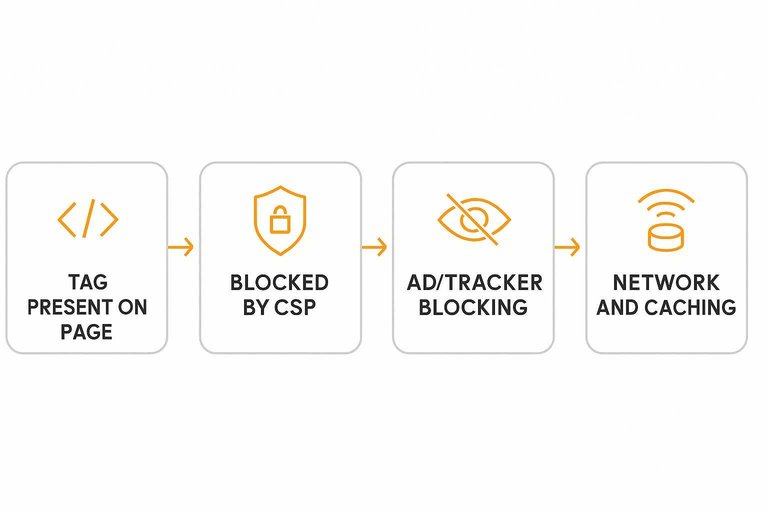
Blocked by CSP
A strict CSP will silently kill your widget unless you allow every required destination. Most widgets need more than just script-src.
- Check DevTools Console for CSP violation messages.
- Review
script-srcfor the vendor and your loader domain. - Review
connect-srcfor API and event endpoints (often where testimonial content is fetched from). - Review
img-srcfor avatars, logos, and badges. - Review
frame-srcif the widget embeds content.
CSP fixes are surgical, so copy the exact blocked URL first.
Ad/Tracker Blocking
Some social proof domains look like trackers to blockers. That makes the widget “randomly” fail for a chunk of users.
Test in a clean browser profile with extensions off. Also test in a privacy-focused browser mode. If it only fails there, try an alternate vendor hostname or first-party proxying if your vendor supports it.
If the request is blocked locally, your server logs will look perfect while users see nothing.
Network and Caching
Most “not showing” issues are plain network failures. The browser will tell you exactly which request died.
- Open DevTools Network and reload with “Disable cache” checked.
- Filter by the vendor domain and your loader filename.
- Inspect failures: 4xx, 5xx, CORS errors, or
net::ERR_BLOCKED_BY_CLIENT. - Check for mixed content: HTTPS page calling HTTP assets.
- Purge or bypass CDN caches if old loader code is served.
One bad cached loader can break every page until you evict it.
If you’re validating the install, compare your snippet to the plain HTML installation guide.
If you need a refresher on the tooling, see Chrome’s guide to inspect network activity.
Async/Defer Timing
Async loading is great until init runs too early. Then the widget “initializes” against nothing.
Confirm your init fires after the vendor script finishes loading. Also confirm the target container exists when init runs, especially on SPA route changes. If needed, move init into the script’s onload, or gate it on a DOM-ready and container-present check.
Timing bugs look flaky because they depend on race conditions, not logic.
Initialization and Targeting
Your script can load cleanly and still render nothing. Most “it never mounts” issues come from keys, selectors, or when initialization runs.
Wrong Site Key
Keys are usually environment-scoped, and providers often bind them to domains. A single mismatch can make the widget silently refuse to boot.
- Confirm the site key matches the intended environment.
- Verify the allowed domain list includes your current hostname.
- Check for staging keys deployed to production builds.
- Inspect the init call and ensure the key isn’t empty.
- Re-test after clearing CDN and browser caches.
If the key is wrong, nothing else you debug will matter.
Missing Container Selector
Most widgets need a mount node. If the selector points to nothing, the script “works” but renders nowhere.
Confirm the target ID or class exists in every template that should show it.
Check for duplicate IDs across components, modals, and layouts.
Also check timing. The element may render after your init runs.
Fix the DOM target first, then worry about styling.
SPA Route Changes
Single-page apps often initialize only once on the first load. Route changes can swap the DOM while your widget thinks it already mounted.
- Hook into your router’s navigation event.
- On each route, confirm the container exists before init.
- Destroy or unmount the prior instance if the provider supports it.
- Debounce rapid route transitions to avoid double init.
- Log route, selector, and init result for each navigation.
Treat navigation like a fresh page load, because your DOM effectively is. If you’re using Next.js, follow Next.js App Router integration steps to ensure re-initialization happens on client-side transitions.
Conflicting Global Variables
Many widgets expose globals on window. Another script can overwrite that namespace, or you can load two versions at once.
Check window for the expected global before and after the widget script loads.
Search your bundles for multiple copies of the widget loader.
Watch for shims that rewrite globals, like polyfills or module wrappers.
One clean global beats two “almost working” ones.
Feature Flags Disabled
Flags can block init even when the code is present. That’s common in SaaS apps with experiments and per-plan gating.
- Check local flags in your app config.
- Inspect remote config returned at runtime.
- Verify experiment buckets for the current user.
- Confirm plan, role, or tenant restrictions.
- Look for page-level “disable widget” toggles.
If it’s flag-driven, your “bug” is often just targeting logic.
CSS and Layout Issues
Sometimes the widget mounts fine, but your CSS makes it effectively invisible. Treat it like a layout bug first, not a JavaScript bug.
Hidden by CSS
Start by assuming the widget is there, but hidden by a rule higher in the cascade. You’re hunting for the single property that turns “rendered” into “gone.”
- Inspect the widget root for
display:none,visibility:hidden, oropacity:0. - Check stacking with
z-index, plus any parent creating a new stacking context. - Look for parent
overflow:hidden/clipthat cuts off fixed or absolute children. - Verify the widget isn’t positioned offscreen via
top/left/right/bottomor transforms. - Temporarily force
display:block,opacity:1, and a highz-indexto confirm.
Once you can force it visible, you’ve narrowed the problem to one CSS constraint.
For a deeper explanation of layering issues, review MDN’s guide to understanding z-index.
Responsive Breakpoints
Breakpoints often “fix” desktop layouts by breaking overlays and floating UI. Your widget may be offscreen, under a sticky bar, or shoved into an unsafe area.
Check mobile and tablet widths in DevTools, not just a resized desktop window. Pay attention to sticky headers, bottom nav bars, and env(safe-area-inset-*) padding on iOS.
If it disappears only at certain widths, your fix belongs in that media query.

Font/Icon Failures
When icons or webfonts fail, some widgets collapse into tiny boxes or blank squares. Treat blocked assets like broken layout, because that’s what it becomes.
- Allow required font and icon asset domains
- Verify CSP
font-srcandimg-srcrules - Check ad blockers for blocked CDNs
- Add fallback fonts and icon sizing
- Reserve space with stable line-height
If the UI “reappears” when assets load, your real bug is delivery, not rendering.
Shadow DOM/Iframes
A widget can mount into the wrong “world” and look missing. Shadow roots and iframes change stacking, sizing, and event behavior in ways normal CSS won’t fix.
If you mount inside an iframe, ensure the container has explicit dimensions and the iframe allows overlays. If you mount inside a shadow root, confirm your provider supports Shadow DOM, or move the mount node to the light DOM.
When the DOM boundary is the issue, relocating the container beats fighting styles.
Provider-Side Constraints
Sometimes your install is fine, but the provider won’t serve impressions.
That usually comes down to account settings, targeting rules, or missing required data.
Domain and Environment
Misaligned domains or workspaces can block delivery even with perfect code.
Check the provider’s allowlist and environment mapping.
- Verify your production domain is on the provider’s allowed domain list.
- Add staging, preview, and custom domains you actually use.
- Confirm you’re in the correct workspace, project, or “site” container.
- Match the provider environment to your build: prod vs staging.
- Republish or re-sync settings if the provider requires it.
If the provider can’t match domain to environment, it won’t even try to render.
Audience Rules
Targeting rules can quietly exclude every SaaS page you care about.
Audit rules as if you’re trying to prove the widget is blocked.
Common rule tripwires:
- URL patterns that miss SPA routes or querystring pages
- “Only show on” rules pointing to old paths
- Geo targeting excluding your test location
- Device targeting skipping desktop or mobile
- Schedules that pause outside business hours
Disable targeting temporarily, then re-add rules one at a time.
Event/Data Requirements
Many widgets need verified events before they show anything.
No events, no notifications.
- Identify the minimum event needed: signup, purchase, trial, etc.
- Send a real test event through the provider’s expected channel.
- Confirm the event appears in the provider dashboard, not just your logs.
- Check required fields like timestamp, URL, and product or plan name.
- Verify identity rules: anonymous vs known user, dedupe, and suppression.
Fix the data pipeline first; UI troubleshooting won’t create missing events.
Rate Limits/Quotas
Providers throttle when you exceed quotas, spike traffic, or hit API limits.
Some also pause campaigns after repeated errors.
What to check in the provider UI:
- Campaign status: active vs paused
- Quota usage: impressions, events, API calls
- Throttle indicators: rate limited, delayed, suppressed
- Error logs tied to your site ID or workspace
If you’re throttled, reduce event volume or request higher limits before tweaking code.
Modern Platform Blockers and Rendering Pitfalls
If the embed script loads but the social proof widget for saas still doesn’t appear (or only appears for some users), the issue is often outside your code: modern browser privacy controls, security headers, consent enforcement, and framework rendering behavior can all prevent the widget from executing, fetching data, or attaching to the DOM.
Use this section when the console looks “quiet” (no obvious errors), the widget works in one environment but not another, or it fails only in production behind stricter policies.
Content Security Policy (CSP) and Trusted Types
A strict CSP is a common reason widgets silently fail—especially on SaaS apps that lock down third-party scripts.
Check for:
- Blocked script loads:
Refused to load the script ... because it violates the following Content Security Policy directive... - Blocked network calls (beacons, APIs, images): requests to the provider’s domains denied by
connect-src,img-src, orframe-src. - Inline script restrictions: some widgets rely on inline bootstrapping; if you require nonces/hashes, the provider’s snippet may not run.
- Trusted Types enforcement: if your app enforces Trusted Types, third-party DOM injection can be blocked unless the widget supports it.
What to do:
- Add the provider’s required domains to the right directives (
script-src,connect-src,img-src,style-src,frame-srcas applicable). - Prefer the provider’s recommended “CSP-friendly” embed (nonced script tag, external loader, or async loader) if they offer one.
- Verify CSP changes in the browser DevTools “Security” panel and the Network tab (look for blocked requests).
Consent Mode, CMPs, and Privacy Sandbox effects
In many SaaS setups, a Consent Management Platform (CMP) or consent mode configuration blocks third-party scripts until the user opts in. The result: the widget never initializes on first load, only appears after consent, or behaves inconsistently across regions.
Common patterns:
- The widget is categorized as “marketing/analytics” and is suppressed until consent.
- Consent is granted, but the widget doesn’t re-run initialization after the CMP updates state.
- Privacy-related settings (including newer browser restrictions) limit third-party identifiers, causing the widget to fail if it assumes tracking is available.
What to do:
- Confirm how your CMP classifies the widget script and whether it is being deferred/blocked.
- If the provider supports it, use their consent-aware initialization (e.g., a call you can trigger after consent) rather than relying on page load.
- Test with consent explicitly denied and explicitly granted, and verify whether your app triggers a re-init on consent changes.
Ad blockers, tracking prevention, and allowlisting
Even when a widget isn’t “ads,” it can be blocked because it loads from domains or paths that match popular filter lists, or because its requests look like tracking.
Signs you’re hitting this:
- Works in a clean browser profile but fails in a typical user setup.
- Network requests show as blocked (often with “blocked by client”) or never appear.
- Breakage is more common in privacy-focused browsers or when strict tracking prevention is enabled.
What to do:
- Test with extensions disabled and in a private window.
- If your provider supports it, use a custom domain / CNAME option to serve widget assets from a first-party domain.
- Keep the widget’s network calls on the minimal set of endpoints and avoid loading unnecessary third-party dependencies on critical routes.
- Provide a graceful fallback (e.g., reserve space or show a static testimonial component) so users with blockers don’t see broken UI.
SSR, hydration, and route transitions in modern frameworks
On SaaS apps built with SSR/SSG and client-side routing (Next.js, Remix, Nuxt, etc.), widgets can fail because they initialize before the target element exists, initialize on the server where window is undefined, or never re-run on SPA route changes.
Common pitfalls:
- The widget script runs during SSR and errors (or is skipped), then never re-initializes.
- The target container is conditionally rendered and appears after hydration, so the widget can’t find it at init time.
- The widget initializes on the first page load but disappears or never loads on subsequent client-side navigations.
What to do:
- Ensure the widget loads client-side only and initializes after the component mounts.
- Initialize in a lifecycle hook (
useEffect/mounted) and guard against missing containers. - On SPA route changes, trigger the provider’s “refresh/reload” method if available, or re-run initialization once the new route is ready.
- Avoid rendering the widget container in a way that changes its ID/class between server and client (hydration mismatches can prevent attachment).
Service workers, caching, and edge rewrites
Production SaaS deployments often include service workers, aggressive caching headers, or edge/CDN rewrites that can interfere with third-party scripts.
Watch for:
- The widget script is cached in a broken state, or an older snippet is served.
- Requests are rewritten/redirected in a way the provider doesn’t expect.
- Offline-first service worker rules inadvertently intercept the widget’s network calls.
What to do:
- Verify the script response in DevTools (headers, status, and whether it’s coming from a service worker).
- Temporarily bypass the service worker (or disable it) to confirm whether it’s involved.
- Ensure CDN/edge rules do not rewrite the provider’s script URL or strip query parameters the widget uses.
Work the Checklist, Then Lock in a Permanent Fix
- Prove the failure: reproduce it, define what “not showing” means, and capture console + network evidence.
- Isolate the layer: script delivery (tag/CSP/blockers/cache/timing) vs initialization/targeting (keys/selectors/SPA) vs CSS/layout (visibility/breakpoints/iframes).
- Confirm provider rules: domain/environment, audience/event requirements, and quotas—then retest in a clean browser profile.
- Prevent repeats: add a lightweight health check (load + init), log widget errors, and document the required page selectors and environments.
Frequently Asked Questions
- Why is my social proof widget for SaaS only missing for logged-in users or behind authentication?
- Most social proof widgets are blocked by auth walls, CSP rules, or app shells that delay DOM readiness for signed-in routes. Test on a public URL first, then verify your app allows the widget script to load and run on authenticated pages.
- Do ad blockers or privacy tools prevent a social proof widget for SaaS from showing?
- Yes—ad blockers, tracking protection (Safari/Firefox), and strict cookie settings can block third-party scripts or network calls the widget needs. Confirm by testing in an incognito window with extensions disabled and checking the browser console/network panel for blocked requests.
- How do I verify a social proof widget for SaaS is actually firing and rendering (not just installed)?
- Use Chrome DevTools to confirm the widget script request returns 200, then look for its global object or init call and a new DOM node where it should mount. Also watch the Console for CSP errors and the Network tab for blocked fetch/XHR calls to the provider.
- Can I use a social proof widget for SaaS on SPA routes (React/Next.js) without reloading the page?
- Yes, but you usually need to re-initialize the widget on route changes because SPAs don’t trigger a full page load. Hook into your router events and call the provider’s re-render/init method after the target element exists.
- What’s a good alternative if my social proof widget for SaaS keeps failing on certain pages?
- Use a simpler embed that’s less sensitive to SPA timing and selectors, such as an iframe or a static testimonials block. Tools like ShowTrust can provide embeddable testimonial widgets that are often easier to place reliably across marketing pages and app surfaces.
Restore Trust Signals Fast
After you’ve checked scripts, targeting, and CSS conflicts, the next step is making sure your social proof is easy to publish and reliable on every SaaS page.
ShowTrust helps you collect, curate, and embed testimonials with dependable widgets and a public wall—so prospects can verify credibility quickly and conversions don’t slip.
Written by
ShowTrust
Notes from the ShowTrust team on collecting testimonials and building authentic social proof.
Share: